





Locating the Reset Button on Your Electric Scooter: A Step-by-Step Guide
Discover where the reset button is located on electric scooters and follow a step-by-step guide on how to safely and effectively use it to troubleshoot and resolve common issues.
If you're experiencing performance issues, error codes, or unexpected behavior with your electric scooter, performing a reset can often resolve these problems quickly and easily. However, finding the reset button—or determining whether your scooter even has one—can be surprisingly challenging given the variety of designs, manufacturers, and models available in 2024-2025. This comprehensive guide explains where reset buttons are typically located on popular electric scooter brands, provides brand-specific instructions, explores alternative reset methods for scooters without physical buttons, and explains when and why resetting your scooter is beneficial.
Important Reality: Not All Scooters Have Reset Buttons
Before searching for a reset button, understand this crucial fact: many modern electric scooters do not have a physical reset button. Instead, manufacturers have increasingly adopted alternative reset methods that use combinations of existing controls (power button, brake lever, throttle) or software-based resets through companion apps.
Scooters that typically DO have physical reset buttons include older Razor models, some budget-friendly brands, certain models designed for children or beginners, and scooters with simple electrical systems. Scooters that typically DO NOT have physical reset buttons include Xiaomi M365/Pro series, Segway Ninebot Max and ES series, many Gotrax models, modern high-end scooters with app connectivity, and scooters with advanced digital control systems.
If your scooter doesn't have a reset button, don't worry—this guide provides comprehensive alternative reset methods that are often more effective than physical buttons anyway.
Understanding What a Reset Does and When to Use It
Before locating your reset button, it's helpful to understand what resetting actually accomplishes:
What Resetting Does: Clears temporary system errors and cached data stored in the controller's memory, resets the Battery Management System (BMS) calibration in some cases, stops error code loops where the scooter repeatedly displays the same error, restarts the controller's software to clear glitches, and can restore basic functionality after electrical overloads or shorts.
When to Reset Your Scooter: Your scooter displays persistent error codes (E1, E2, E3, etc.) that don't clear after turning off, the scooter won't turn on or responds erratically, performance has decreased suddenly without obvious cause, the battery percentage display is inaccurate or jumps around, throttle response is sluggish or unresponsive, after experiencing an electrical overload (attempting to climb too steep a hill, exceeding weight capacity), or following exposure to moisture or rain if the scooter isn't functioning properly.
What Resetting Does NOT Do: It does not fix mechanical problems (worn brakes, flat tires, loose connections), repair damaged components (broken throttle, failed motor, damaged controller), resolve battery capacity degradation from age, or update firmware—firmware updates require separate procedures usually through apps.
Safety Precautions Before Resetting
Always follow these safety guidelines before attempting to locate or press any reset button:
- Power Off Completely: Turn off your scooter using the power button before looking for or pressing any reset button. This prevents accidental activation or electrical shorts.
- Avoid Wet Conditions: Never attempt to reset your scooter while it's wet or in rainy conditions. Water and electrical systems don't mix.
- Use Appropriate Tools: If pressing a recessed button, use a non-conductive tool like a plastic toothpick or pen tip—never use metal objects that could cause shorts.
- Don't Force Anything: Reset buttons should press easily. If you encounter significant resistance, you may be pressing the wrong component.
- Check Your Manual First: Your scooter's user manual may provide specific reset instructions or warnings unique to your model.
Common Physical Reset Button Locations (When Present)
For scooters that do have physical reset buttons, these are the typical locations where manufacturers place them:
1. Near the Charging Port
This is one of the most common locations. Look on the side or bottom of your scooter near where the charging cable connects. The reset button may be a small, recessed hole (requiring a pin or thin tool to press), a small rubber-covered button flush with the surface, or located directly next to or beneath a rubber flap covering the charging port. Many manufacturers place the reset button here for easy access during troubleshooting.
2. Underneath the Deck
Many electric scooters house their electronic components beneath the deck platform where you stand. To check this location, turn your scooter upside down or lay it on its side in a safe area, use a flashlight to illuminate the underside of the deck, and look for a small button, often labeled "RESET" or marked with a circular arrow symbol. The button may be recessed into the deck housing or mounted on the controller box visible from underneath. This location protects the button from accidental presses during normal riding.
3. Inside or Near the Battery Compartment
Scooters with accessible battery compartments often have reset buttons located here. Open the battery compartment according to your model's instructions (usually secured by screws), look on the battery unit itself or on the compartment walls, or check near the battery connectors. The reset button may be on the Battery Management System (BMS) circuit board. Be careful when accessing battery compartments—always power off first and avoid touching exposed electrical contacts.
4. On or Near the Control Module/Display
Some scooters integrate the reset function near the handlebar controls. Look beside the On/Off power button for a smaller secondary button, check around the display screen perimeter for recessed buttons, or examine the underside of the handlebar grip area. This location provides convenient access but is less common to prevent accidental activation.
5. Near the Motor or Controller Box
The controller box (the "brain" managing power delivery) may have an integrated reset button. Follow the main wiring harness from the battery to locate the controller box—it's typically under the deck or inside the stem. Examine the controller housing for a small button or reset port. This location is more common in budget scooters with simpler designs.
Brand-Specific Reset Button Locations and Methods
Different manufacturers have specific reset procedures. Here's what to know for popular brands:
Razor Electric Scooters
Razor scooters are among the most likely to have physical reset buttons. The reset button is typically located inside the battery compartment on E100, E200, and E300 series models, on the underside of the deck near the motor or charger port, as a small red or black button that may be recessed, or near the On/Off switch on the deck. The reset button primarily functions as a circuit breaker that trips when the motor experiences overload (too much weight, steep incline, motor jam). To reset, press and hold the button for 3-5 seconds until you hear a click or feel it engage, then power the scooter back on.
Xiaomi M365 and M365 Pro
Xiaomi scooters typically do NOT have a traditional physical reset button. Instead, use this reset method: Turn off the scooter completely, press and hold the power button for 5-10 seconds until the screen flashes or shows the Xiaomi logo, or release the button and power on normally. Alternative method—for deeper resets, disconnect the battery (requires opening the deck, which voids warranty) and wait 5-10 minutes before reconnecting. Xiaomi scooters can also sometimes be reset through the Mi Home or Xiaomi Home app if you've connected your scooter.
Segway Ninebot Series (ES1, ES2, ES4, Max, Max G30)
Ninebot scooters generally do NOT have physical reset buttons. Use these brand-specific reset procedures. For ES Series models, turn on the scooter, press the brake lever and power button simultaneously and hold for 3 seconds, release and wait for the scooter to restart. For Ninebot Max models, power on the scooter, simultaneously press and hold the brake button + power button for 3 seconds, or use the Segway-Ninebot app—connect via Bluetooth and look for reset or diagnostic options in settings. Some users report holding the throttle + brake + power button simultaneously for more complete resets, though this varies by firmware version.
Gotrax Scooters (GXL, G4, Apex, etc.)
Most Gotrax models do NOT have a dedicated reset button. To reset Gotrax scooters, turn off the scooter completely using the power button, wait at least 30 seconds, press and hold the power button for 10-15 seconds (some models may require 20+ seconds), release and turn on normally. For some models, check underneath the deck near the controller housing—a small reset button may be present but is not standard across all Gotrax models. If your Gotrax model has the Gotrax app (now removed from Android Play Store but still available on iOS), you may be able to perform resets through the app.
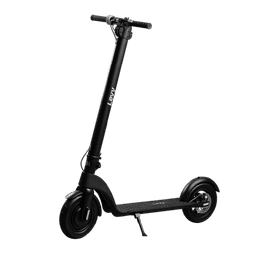
Levy Scooters
Levy electric scooters typically include a physical reset button. The reset button is usually located on the underside of the deck, near the controller box or battery area, as a small button that may require a pin or thin tool to press. Consult your specific Levy model's manual for exact placement.
Generic/Unbranded Models
For off-brand or generic scooters, common reset button locations include underneath the deck near visible wiring or controller boxes, near the charging port on the side of the deck, or inside the battery compartment if accessible. Try the universal power button reset method (hold power button 10-15 seconds) as a first attempt.
Step-by-Step Guide to Finding and Using a Physical Reset Button
If you believe your scooter has a physical reset button, follow this systematic approach:
Step 1: Consult Your User Manual
Before physically searching, check your scooter's user manual first. Look for sections titled "Troubleshooting," "Maintenance," "Reset Procedure," or "Technical Specifications." The manual should include diagrams showing the exact reset button location. If you don't have a physical manual, visit the manufacturer's website and download the digital version for your specific model. Many manufacturers also provide support videos on YouTube showing reset procedures.
Step 2: Power Off and Prepare
Turn off your electric scooter completely using the power button. Wait for all lights and display screens to turn off completely. If your scooter has a removable key, remove it for additional safety. Gather tools you might need—flashlight for visibility, toothpick or plastic pen for pressing recessed buttons, and screwdriver if you need to access battery compartments.
Step 3: Check Near the Charging Port
Examine the area around your charging port carefully. Look on all sides—front, back, and bottom of the charging port area. Feel for any small holes or buttons covered by rubber flaps. The reset button is often black or red and may be labeled with "RESET" or a circular arrow symbol. If you find what appears to be a reset button, it will typically be a small round or rectangular button, possibly recessed requiring a tool to press.
Step 4: Inspect Underneath the Deck
Carefully turn your scooter upside down or lay it on its side on a soft surface to prevent scratching. Use a flashlight to thoroughly examine the entire underside of the deck. Look for any visible circuit boards, controller boxes, or electronic components. Check these components for small buttons, often found on the controller housing with wiring coming into/out of it. The reset button may have "RESET" printed nearby or be marked with a symbol.
Step 5: Check Battery Compartment (If Accessible)
If your scooter model has an accessible battery compartment (check your manual to confirm), turn off and unplug your scooter, locate the battery compartment cover—usually held by 4-6 screws on the deck, carefully remove the cover and set aside screws safely, examine the battery unit and compartment walls for any small buttons, and check the BMS (Battery Management System) circuit board attached to the battery. If you find a reset button here, it may be labeled or marked. After inspection, carefully reassemble the compartment and secure all screws. Warning: Opening the battery compartment may void your warranty on some models.
Step 6: Press the Reset Button Correctly
Once you've located the reset button, use the appropriate tool—for flush or raised buttons, press directly with your finger, and for recessed buttons, use a plastic toothpick, pen tip, or paperclip (use plastic tools first; avoid metal when possible). Press the button firmly but gently until you feel a distinct click or resistance. Hold the button down for 3-5 seconds as recommended by most manufacturers. Release the button and wait a few seconds for the reset to process. The scooter may emit a beep, flash lights, or show a brief display indication confirming the reset.
Step 7: Power On and Test
After pressing the reset button, turn your electric scooter back on using the normal power-on procedure. Check if the previous issue (error code, sluggish performance, etc.) has been resolved. Test basic functions—throttle response, braking, display information. If the issue persists, you may need to try alternative reset methods or contact technical support.
Alternative Reset Methods (For Scooters Without Physical Buttons)
If your scooter doesn't have a physical reset button, or if you can't locate it, try these effective alternative methods:
Method 1: Power Button Hold Reset (Universal)
This works for many scooters regardless of brand. Turn off your scooter completely and wait 30 seconds. Press and hold the power button continuously for 10-20 seconds (timing varies by model—some require up to 30 seconds). You may see the display flash, lights blink, or hear a beep during this process. Release the power button and wait 10 seconds. Turn the scooter on normally. This method performs a soft reset that clears temporary errors without affecting settings.
Method 2: Button Combination Reset (Brand-Specific)
Many scooters use specific button combinations as reset procedures. Common combinations include Power + Brake (hold both simultaneously for 3-5 seconds), Power + Throttle (some models), or Brake + Throttle + Power (all three together, though less common). For Ninebot scooters specifically, the Brake + Power combination (3 seconds) is the standard reset procedure. Always start with the scooter powered on for combination resets, hold the combination for the recommended duration (usually 3-5 seconds), and release and observe if the scooter restarts or displays change.
Method 3: Battery Disconnection (Hard Reset)
This method performs a complete power cycle and is effective for stubborn issues. Warning: This method may void your warranty and requires careful handling. Turn off and unplug your scooter from charging. Locate the battery connector—this typically requires removing the deck cover (secured by screws). Carefully disconnect the battery connector from the main wiring harness—note the connector orientation for reconnection. Wait 5-10 minutes to allow all capacitors to fully discharge and the controller's memory to clear. Reconnect the battery connector firmly, ensuring proper alignment and a complete connection. Reassemble the deck cover and secure all screws. Power on your scooter—it should start fresh with temporary errors cleared. This is the most thorough reset method but should only be used when other methods fail.
Method 4: Mobile App Reset (If Available)
Modern scooters with Bluetooth connectivity often support app-based resets. Download your manufacturer's official app (Segway-Ninebot app, Mi Home/Xiaomi Home, Levy app, etc.). Pair your scooter with your smartphone via Bluetooth following the app's instructions. Open the app and navigate to settings or diagnostics section. Look for options labeled "Factory Reset," "System Reset," "Clear Errors," or "Diagnostics." Follow the on-screen instructions to perform the reset. App-based resets are convenient and often provide additional diagnostic information. Note: Some apps allow firmware updates which can resolve persistent issues beyond simple resets.
Method 5: Display Menu Reset (If Available)
Scooters with advanced displays may have reset options in their menu systems. Power on your scooter and access the display menu (button combination varies by model—check your manual). Navigate through menu options looking for "Settings," "System," or "Advanced." Find and select reset options such as "Factory Reset," "Clear Errors," or "System Reset." Confirm the reset and wait for the process to complete. This method varies greatly by model and not all scooters with displays have this option.
What to Do If Resetting Doesn't Solve Your Problem
If you've tried resetting your scooter using multiple methods and the issue persists, consider these next steps:
- Identify the Specific Problem: Resetting addresses software glitches and temporary errors but won't fix hardware failures. If your issue involves physical damage, worn components, or mechanical problems, resetting won't help.
- Check for Loose Connections: Many scooter issues result from loose electrical connections rather than software errors. Inspect visible connectors (throttle, brake, display, motor cables) to ensure they're firmly seated.
- Update Firmware: If your scooter supports firmware updates via app, install the latest version. Updates often fix bugs that cause recurring issues.
- Consult Error Code Documentation: If your scooter displays specific error codes (E1, E2, E3, etc.), research what those codes mean for your brand and model. Error codes often indicate specific component failures that resetting can't fix.
- Contact Customer Support: Reach out to your manufacturer's customer support with your model number, serial number, description of the issue, and the reset methods you've already tried. They may have brand-specific solutions.
- Seek Professional Repair: For persistent issues after resetting, professional diagnosis may be needed. Authorized service centers have diagnostic equipment to identify controller failures, motor issues, or battery problems that aren't visible or fixable through resets.
Preventing Issues That Require Resets
While resetting can solve many problems, preventing issues in the first place is ideal:
- Avoid Overloading: Stay within your scooter's weight capacity and avoid prolonged climbing of steep hills that strain the motor and controller
- Protect from Water: While many scooters have water resistance ratings, avoid riding through deep puddles or in heavy rain when possible
- Regular Maintenance: Keep connections clean and secure, charge your battery properly (don't let it fully deplete regularly), and store in moderate temperatures
- Update Firmware: Install manufacturer firmware updates when available to fix bugs and improve performance
- Don't Ignore Error Codes: If your scooter displays error codes, address them promptly rather than repeatedly resetting—persistent errors indicate underlying problems
- Proper Storage: Store your scooter in a dry, temperature-controlled environment when not in use
Understanding the Difference: Soft Reset vs. Hard Reset vs. Factory Reset
Not all resets are the same. Understanding the differences helps you choose the appropriate method:
Soft Reset (Power Cycle): What it does—clears temporary errors and cached data, restarts the controller software. What it keeps—all settings, odometer, trip data, paired app connections. Best for—minor glitches, sluggish performance, temporary error codes. How to perform—power button hold method or simple power off/on.
Hard Reset (Full Power Cycle): What it does—clears temporary data, resets BMS calibration, forces complete shutdown. What it keeps—generally preserves settings and data. Best for—persistent errors that soft reset doesn't fix, after battery issues or overload events. How to perform—battery disconnection method or extended power button hold.
Factory Reset (Complete Wipe): What it does—returns scooter to original factory state, erases all custom settings, clears odometer (on some models), removes app pairings. What it keeps—nothing; returns to "out of box" condition. Best for—preparing to sell the scooter, catastrophic software issues, severe glitches. How to perform—usually through app settings or specific button combinations (varies by brand). Warning: Factory resets erase all your data and settings. Only use as a last resort.
Conclusion
Locating and using the reset button on your electric scooter—or determining the appropriate alternative reset method when no physical button exists—is a valuable troubleshooting skill that can resolve many common issues quickly and without professional help. In 2024-2025, many modern electric scooters have moved away from physical reset buttons toward more elegant software-based reset procedures using existing controls or companion apps.
If your scooter has a physical reset button, it's most likely located near the charging port, underneath the deck, or inside the battery compartment. For popular brands like Xiaomi, Segway Ninebot, and many Gotrax models, alternative reset methods using power button holds or button combinations are the standard approach. Always start with the safest, least invasive reset method (power button hold) before progressing to more complex procedures like battery disconnection.
Remember that while resetting can clear temporary errors and software glitches, it cannot fix hardware failures, mechanical damage, or worn components. If resetting doesn't resolve your issue, the problem likely requires physical inspection, component replacement, or professional diagnosis. Always prioritize safety by powering off your scooter before attempting any reset procedure, and consult your user manual for model-specific instructions and warnings.
With the comprehensive information in this guide, you're now equipped to successfully reset your electric scooter using the method appropriate for your brand and model, getting you back on the road quickly and safely. Happy riding!